How to Make a Blog Button
Not exactly an original tutorial however it’s great to know how to do it AND do it correctly! I’m going to give you two options on how to place the button and the linking back code in your sidebar!
Make the Button
We’re just going to go with the standard 125px by 125px button for now. Here’s a quick one I made up!

Here’s how I made it using Photoshop (you can use any program you’re familiar with to create the button).
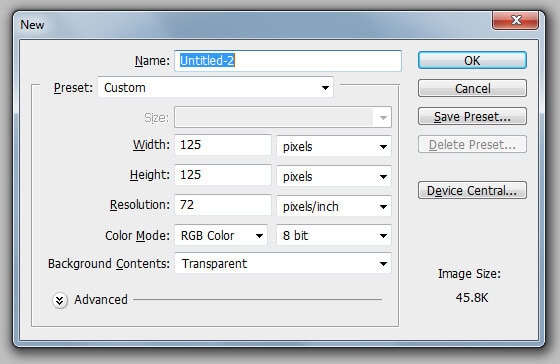
1. Create a new document with the dimensions of 125px width and 125px height.
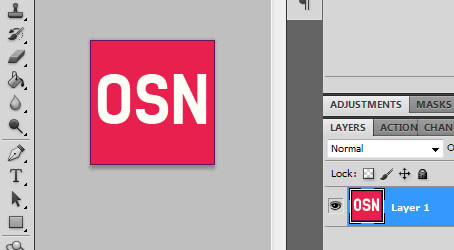
2. Design your button! I stuck with my current color scheme and font to make this basic button.
3. SAVE your button! I always use the highest quality I can get for ANY image I want online.
4. Upload your button via FTP or through your WordPress or Blogger dashboard. If you need to know HOW to do this, just let me know and I’ll help you! Make a note of the PATH of where you uploaded the image. If you did it via your WordPress or Blogger dashboard, it generally gives you the URL of the image.
How to Upload Button and Get Image URL via WordPress
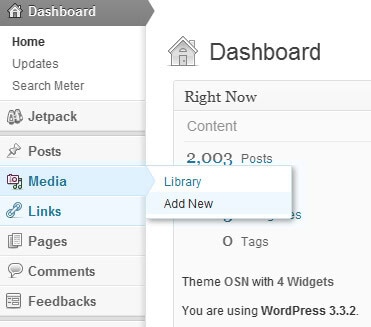
In your WordPress dashboard, you’ll see an area called Media. Hover over that and a second menu will pop out, select “Add New”.
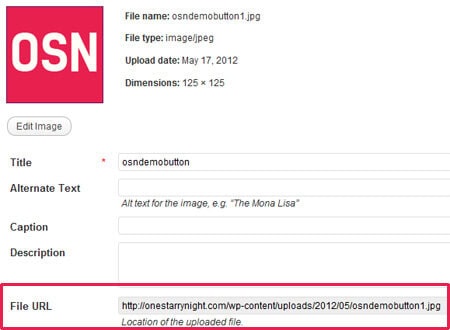
After you upload your image you’ll see the following display. The URL to your image is located in the FILE URL box which I’ve surrounded in lovely pink.
5. Add the button AND code to your sidebar! We have two options here on displaying it.
Option One – Textarea
<img src="http://replacemedomain.com/urltobutton.jpg" alt="your domain name" />

<br /><br />

<textarea rows="4" columns="10"><a href="http://yourdomainurl.com"><img src="http://replacemedomain.com/urltobutton.jpg" alt="your domain name" /></a></textarea>
This creates the following:
Option Two – Div
<img src="http://replacemedomain.com/urltobutton.jpg" alt="your domain name" />
<br /><br />
<div style="overflow:auto; font-size: 11px; width:125px; height:80px; border: 1px solid #c2c2c2">
<a href="http://yourdomainurl.com"><img src="http://replacemedomain.com/urltobutton.jpg" alt="your domain name" /></a>
</div>
That gives you the following:
Add to Your WordPress Sidebar
We’re going to use a widget to easily add the code to your existing theme’s sidebar.
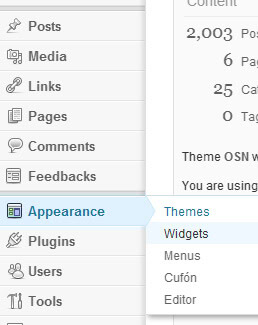
In your WordPress dashboard, navigate to Appearance, when you hover over a second menu will appear, select Widgets.
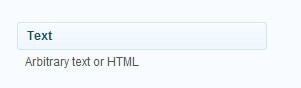
You might have to look around a bit but find the TEXT widget and drag it over to your sidebar.
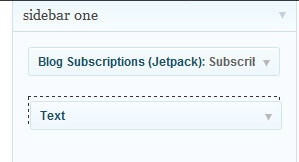
When you select or open up the widget, you can then enter in the code!
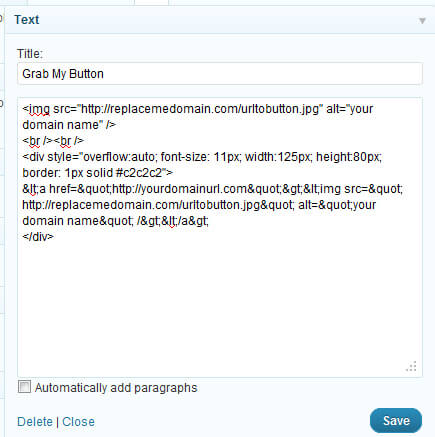
Keep in mind that if you use the WP-Typography plugin for WordPress there is an extra step you’ll have to take if you use the DIV option to remove the fancy curly quotation marks. I don’t think many people use the plugin, but if you need assistance with that plugin, I will help you out.
Let me know how it works out for you! If you have any questions or need help, comment below and I’ll see what I can do.
This post is over a year old which means the content may be outdated or no longer accurate.





very awesome tut :) i shall spread the joy for you ’cause it can definitely help a lot of peoples!!
Aww thank you!
Thanks for sharing this nice step-by-steo tutorial to set up a blog button, I just had been searching for a great guide for this for a couple of weeks, when I came to your blog.
Oh fantastic, I’m glad it’ll help you out!
Hello! I absolutely love this how-to! However, how would you complete the steps using Blogger?
I did it!! thank you so much!
Thank you for this! I have read so many complicated things, and after reading this one I can’t help but think those other guys didn’t know what they were talking about! lol
This was perfectly simple and easy! Thanks so much for posting it!